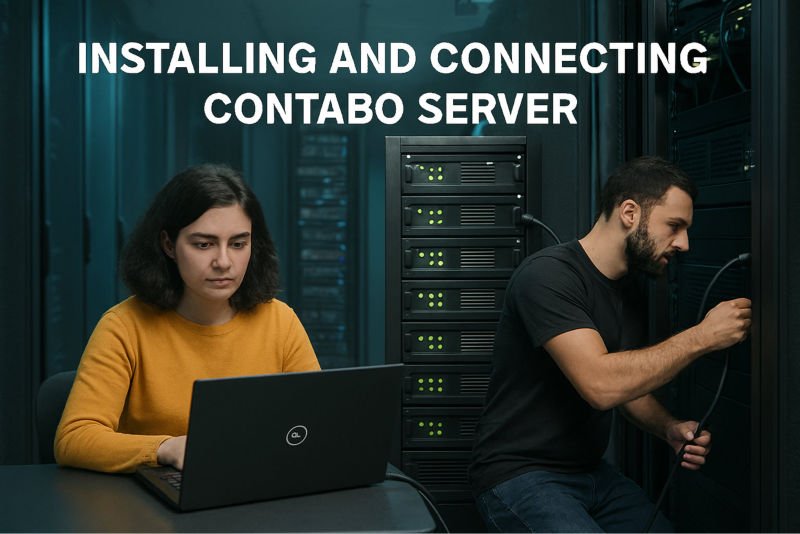
Easily install and connect Contabo_Server. Fast, Secure, Reliable, and Hassle-free Setup!
How to Install and Connect Contabo Server
Installing and connecting a Server in Contabo_VPS is simpler than it sounds. First, after purchasing Contabo VPS Hosting, Contabo will send you login details by email. Use these details to access the Contabo VPS CCP (Customer Control Panel), which is your dashboard. Next, choose the operating system you want like Windows or Linux, which are common options. Once selected, set up a Secure Password for your Contabo VPS Hosting Server. After installation, you will connect to the Contabo Server remotely. If you picked Windows, you can use Remote Desktop: just enter the Contabo VPS Server’s IP address and your password to log in. If you chose Linux, you will use SSH (Secure Shell), which lets you type commands to control the Contabo Server. Think of it like opening a door with a key. The IP address is the Door you want to open, and your Password is the Key. Once inside your Contabo VPS Server, you can install apps, host websites, or run projects safely and reliably. Watch this educational video below to understand how to install and connect Contabo Server.
Understanding What is Contabo VPS
Before diving into
Contabo_VPS, let’s first understand what a VPS
(Virtual Private Server) actually means. Imagine you’re renting an
apartment in a large building. You don’t own the whole building, but you
have your own private space with a lock, electricity, and water supply.
Similarly, a VPS is your private “slice” of a powerful computer (server)
located in a data center. You don’t share your operating system or files
with others, even though the hardware is shared. This makes it secure,
customizable, and reliable. Contabo specializes in offering affordable
VPS plans, giving you the freedom to install software, host websites,
run applications, or even set up a game server. For a layman, think of
it as having your own personal computer on the internet that’s always
on, always accessible, and far more powerful than your home laptop.
Why Choose Contabo VPS?
Contabo has become popular because it balances affordability with
performance. Many providers charge high fees for servers, but Contabo
Servers
offers competitive pricing without cutting corners on quality. Their VPS
servers come with generous RAM, storage, and bandwidth, making them
suitable for beginners and professionals alike. Another benefit is
flexibility: you can choose between Linux or Windows operating systems
depending on your comfort level. If you’re familiar with Windows, you
can connect using Remote Desktop, which feels like logging into another
PC. If you’re curious about Linux, you can use SSH, or Secure Shell,
which is a Secure protocol used for remote access and management of
servers in hosting environments, providing encrypted communication and
enhanced security which is like typing
commands into a terminal.
Contabo also provides a Customer
Control Panel (CCP), a simple dashboard where you manage your
server, reset passwords, reinstall operating systems, or upgrade
resources. For a layman, this means you don’t need to be a tech wizard,
because Contabo makes the process straightforward and beginner-friendly.
Getting Started: Signing Up for Contabo VPS
The first step is signing up for a Contabo VPS plan by Visiting the
Contabo_VPS website, browse through their VPS offerings, and pick one that
suits your needs. If you’re just starting, a basic plan with 4–8 GB RAM
is more than enough. Once you purchase, Contabo will send you an email
with your login credentials. This includes your Customer Control
Panel (CCP) username and password, as well as details about
your server (like IP address). Think of the CCP as your “remote control”
for the server. From here, you can install your operating system, reboot
the server, or even upgrade resources later. For a layman, this is like
buying a new smartphone, you get the box, the charger, and
instructions. The CCP is your instruction manual, guiding you step by
step. Don’t worry if it looks technical; Contabo’s interface is designed
to be simple and clear.
Installing the Operating System in Contabo Server
Once inside the CCP, you’ll need to install an operating system (OS).
Contabo VPS gives you options like Windows Server or
various Linux distributions (Ubuntu, Debian, CentOS). If you’re a
beginner, Windows might feel more familiar because it looks like your
home PC. Linux, however, is lightweight, fast, and widely used for
VPS servers. To install, simply select your preferred OS from the dropdown
menu and click “Install.” This process may take a few minutes, during
which Contabo sets up the system for you. Important note: installing a
new OS will erase any existing files, so always back up your data before
reinstalling. For a layman, think of this like installing apps on your
phone, you choose what you want, press install, and wait for it to
finish. Once done, your server is ready with a fresh operating system,
just like a brand-new computer.
Connecting Contabo Server via Remote Desktop (Windows)
If you chose Windows, connecting is very straightforward. On your
home computer, search for “Remote Desktop Connection” (built into
Windows). Enter the IP address of your
Contabo_VPS
Server, then type in the
username and password you set earlier. Within seconds, a window will
open showing your VPS Server’s desktop. It looks and feels exactly like
another computer, except it’s running in a data center. You can install
software, browse the internet, or manage files just like you would on
your own PC. For a layman, this is like borrowing a friend’s computer
remotely, you see their screen, control their mouse, and type on their
keyboard, but all from your own desk. The beauty of Remote Desktop is
that it’s visual and intuitive, making it perfect for beginners who
aren’t comfortable with command lines.
Connecting Contabo Server via SSH (Linux)
If you selected Linux, you’ll connect your Contabo VPS Server using SSH (Secure Shell). Don’t worry, it sounds complicated, but it’s just a way to safely talk to your server using text commands. On Windows, you can use a free tool called PuTTY. On macOS or Linux, you can open the Terminal. Type:
ssh root@your-server-ip
Then enter your password. Once Contabo Server is connected, you will see a command prompt
where you can type instructions like installing software, creating
folders, or checking system status. For a beginner, imagine you’re sending
text messages to your server, and it replies instantly with results. It
may not look fancy, but it’s powerful and efficient. SSH is widely used
because it’s secure and lightweight. Over time, you’ll get comfortable
with commands like apt-get install (to add programs) or
ls (to list files).
Benefits of Using Contabo VPS Server
Now that you know how to connect, let’s explore why Contabo VPS is
beneficial. First, it’s always online. Unlike your
home computer, which you might turn off, the server runs 24/7. This
makes the Contabo VPS Server perfect for hosting websites, applications, or even online
games. Second, it’s scalable, you can start small and
upgrade resources as your needs grow. Third, it’s secure,
because Contabo provides firewalls, password protection, and the ability to
configure advanced security settings. Fourth, it’s
cost-effective, compared to other providers,
Contabo_VPS offers
more resources for less money. Finally, it’s flexible,
you can install almost anything, from WordPress for blogging to MySQL
for databases. For a beginner, think of it as renting a powerful computer
that never sleeps, costs less than buying hardware, and gives you
freedom to experiment safely.
Features That Make Contabo VPS Stand Out
Contabo VPS servers come with several standout features. You get
dedicated resources like RAM and
CPU, meaning your
performance isn’t affected by other users. You also get SSD
storage, which makes everything faster. Another feature is
global availability, Contabo has data centers in
multiple countries, so you can choose a location closer to your audience
for better speed. The Customer Control Panel is another
highlight, letting you reboot, reinstall, or upgrade with a few clicks.
Contabo also supports IPv6, the latest internet
protocol, ensuring future compatibility. For beginners, these features
mean you don’t have to worry about technical limitations. It’s like
buying a car with modern safety features, GPS, and fuel efficiency, you
may not use them all immediately, but they’re there when you need them.
Common Mistakes Beginners Make
When installing and connecting a Contabo VPS Server, beginners often make a
few mistakes. One is forgetting to back up data before reinstalling the
OS, this can erase everything. Another mistake people make is using weak passwords, which
makes the server vulnerable. Some users also forget to update their
system regularly, leaving it exposed to security risks. Others may
install too many unnecessary applications, slowing down performance. For
a layman, think of it like cluttering your phone with apps you never use,
which will drain your battery and storage. The key is to keep your server clean,
secure, and updated.
Contabo_VPS provides guides and tutorials to help avoid
these pitfalls, so always read instructions carefully.
Practical Uses of Contabo VPS
So, what can you actually do with your Contabo VPS? The possibilities
are endless. You can host a personal blog using WordPress, run an online
store with WooCommerce, or manage databases for projects. Developers can
use it to test applications, while gamers can set up private game
servers. Businesses can run email servers or cloud storage solutions.
For a layman, imagine it as a Swiss Army knife, which means one tool with many
functions. The best part is that you’re in control. Unlike shared
hosting, where you’re limited by restrictions, a VPS gives you freedom
to customize. This makes Contabo VPS not just a technical product, but a
platform for creativity, learning, and growth. We recommend you to
explore the various Cloud VPS, Dedicated Server, and S3 Copatible
Object Storage Configurations available at Contabo Hosting as
below:
- Contabo Cloud VPS 60
- Contabo Cloud VPS 50
- Contabo Cloud VPS 40
- Contabo Cloud VPS 30
- Contabo Cloud VPS 20
-
Contabo Cloud VPS 10
Contabo Dedicated Server
7.
Contabo Dedicated Server Web Hosting
Contabo Object Storage
8.
Contabo Object Storage (S3-Compatible)